
Remote support from the WorkOrderAgent: be at the customer’s without driving there.
The printer is on strike, an update is stuck, a program will not start: much of this can be fixed remotely in a few minutes. With remote support in the WorkOrderAgent you open your customer’s computer straight from their customer record, and the time goes into the timesheet by itself.
Sound familiar?
A customer calls because their computer will not print. You look up the remote support login, wait while the customer reads out a number, fix the problem in ten minutes and hang up. At the end of the month those ten minutes are missing from the invoice, because nobody remembered to write them down.
In the WorkOrderAgent, remote support and billing belong together. Your customers’ computers are in the customer record, one click opens the connection, and at that moment the timer starts too. No minute gets lost, and the customer sees on the invoice what they are paying for.
From the first device to the invoice
Once set up, every further job takes seconds.
- InviteYou create an invitation link for the customer, valid from one hour to seven days, and send it by email. Alternatively you download the agent directly.
- AddThe customer installs the small remote support agent. The device appears straight away in its own device group, with operating system and signed-in user.
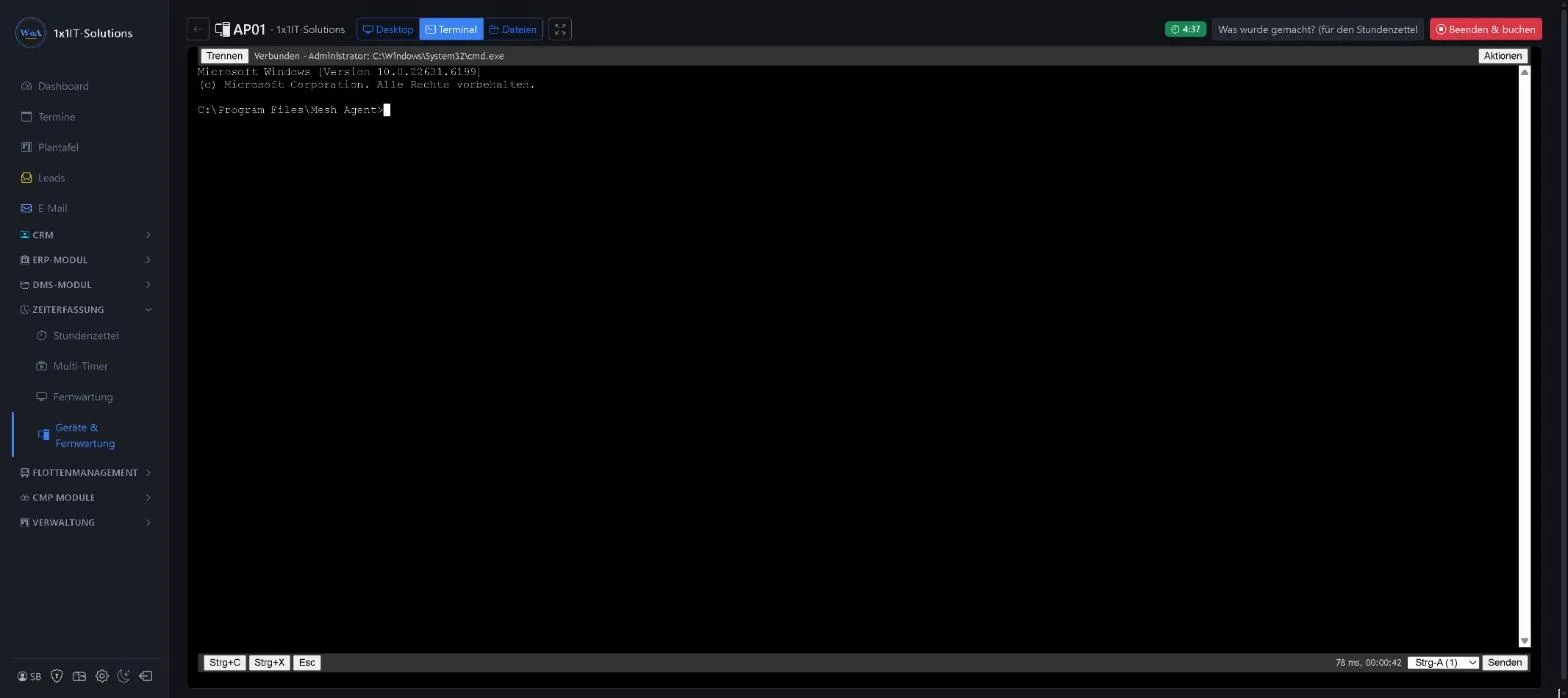
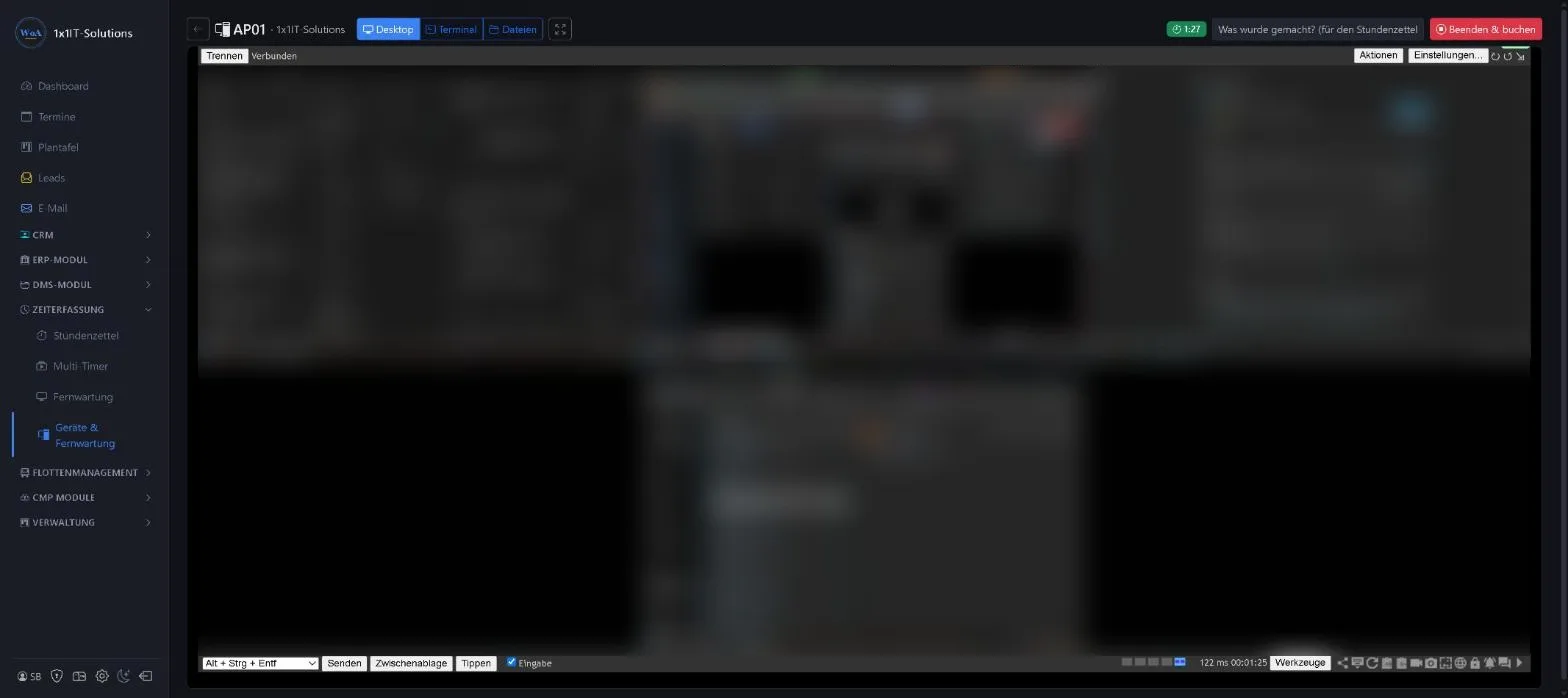
- ConnectWhen help is needed, click desktop, terminal or files. The session opens full screen and connects automatically.
- BillThe timesheet timer has been running since the connection opened. You check the entry and carry it over to the invoice as usual.
Three ways onto the computer
Choose the right view for the task.
- Desktop
- You see the customer’s screen and work on it as if you were there: check settings, reinstall a program, show the customer something.
- Terminal
- For quick fixes without disturbing the customer: restart services, read logs, run commands while the customer keeps working.
- Files
- Exchange files between your computer and the customer’s, for example push over a driver or fetch a log file.
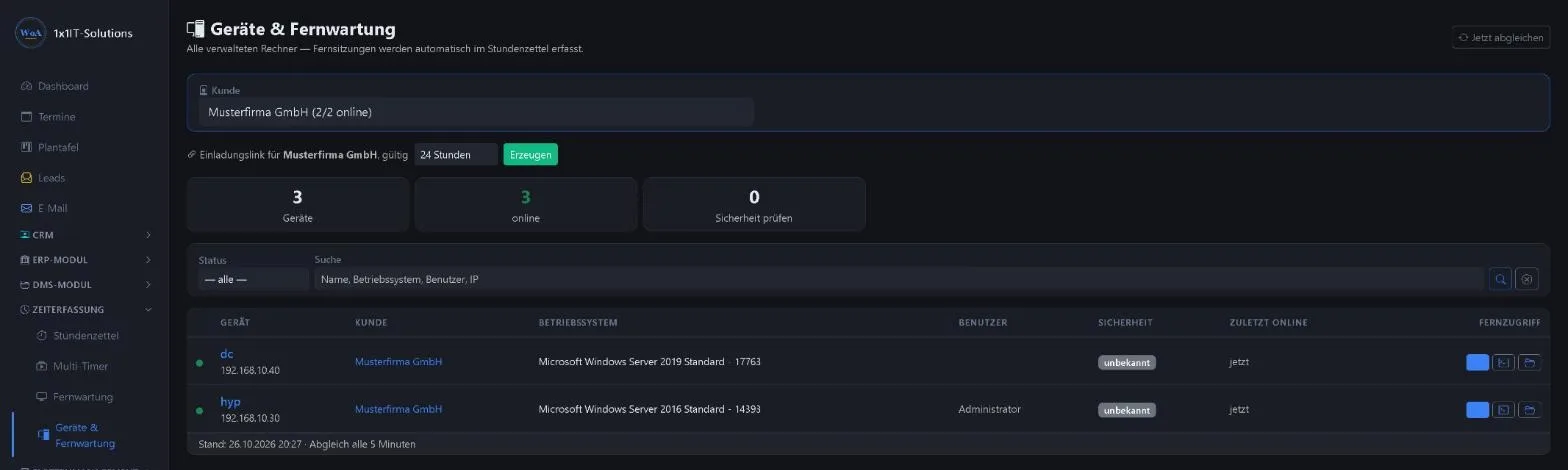
- All devices at a glance
- The device list shows per customer which computers are online, which operating system runs and when a device was last reachable.

Security status of every computer at a glance
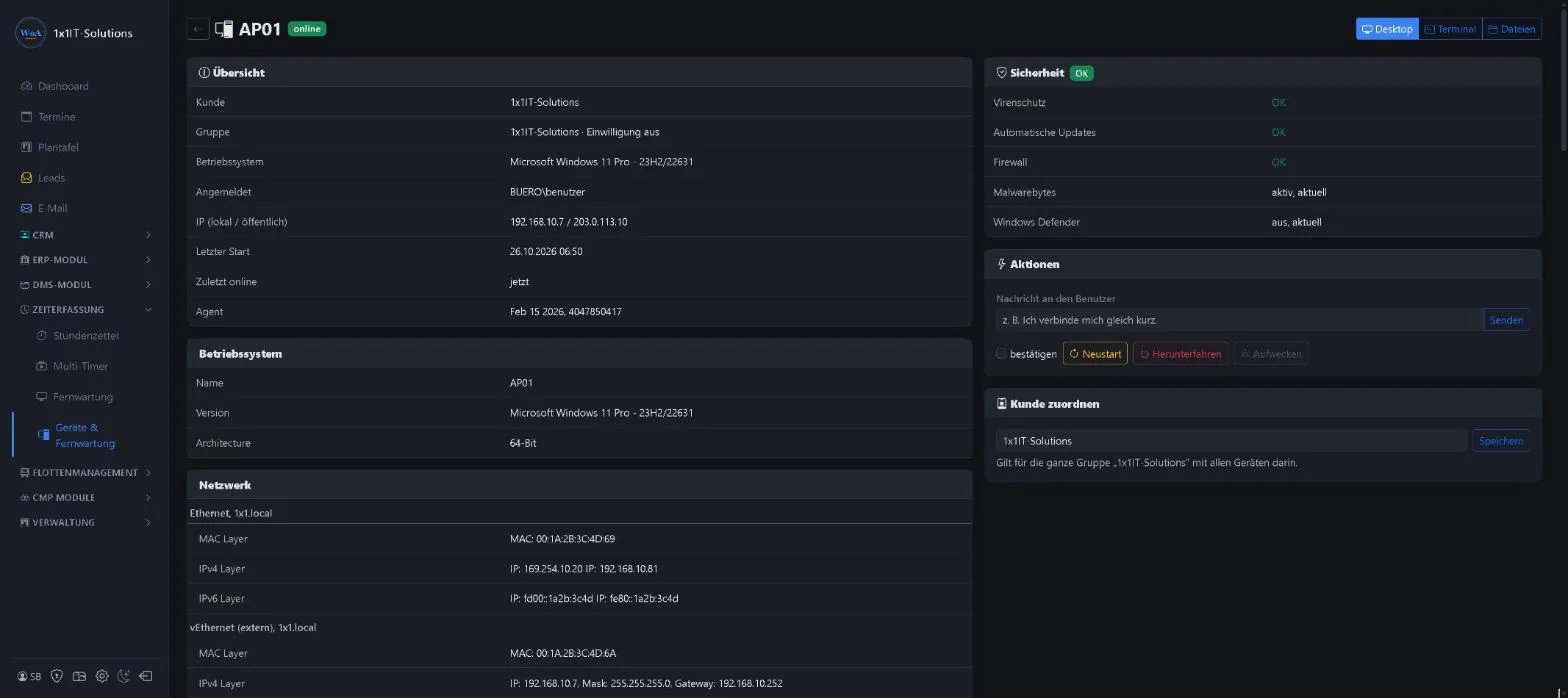
Every five minutes the WorkOrderAgent syncs the devices and shows where something is wrong.
- Antivirus
- For each device you see which antivirus is installed, whether it is active and whether its signatures are up to date.
- Firewall and automatic updates
- From the Windows Security Center the WorkOrderAgent reads whether the firewall and automatic Windows updates are switched on.
- Windows end of support
- The WorkOrderAgent detects whether the installed Windows version still receives security updates from Microsoft and warns 60 days before end of support. Windows Server and LTSC versions are not checked.
- At a glance: “check security”
- If antivirus, firewall or automatic updates are not OK, the device is marked “check”. A filter shows only these devices, and the tile at the top counts them.
Alerts before anything happens
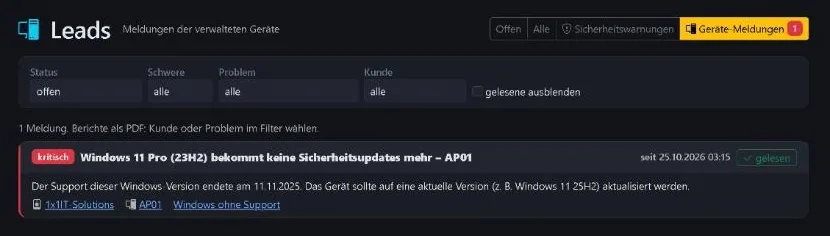
Problems arrive as device alerts in the CRM under leads, together with enquiries and security warnings.
- Critical
- No active antivirus, or a Windows version without security updates. New critical alerts arrive as a push notification on the administrators’ phones.
- High
- Outdated virus signatures, firewall not OK, automatic updates off, or Windows end of support in less than 60 days.
- Notice
- A device has not been reachable for more than three days.
- Resolves itself
- Once the cause is fixed, for example because antivirus is running again, the alert disappears at the next sync. Alerts for a customer or a problem can also be exported as a PDF report.
Everything about a device on one page
The detail page fetches the data live from the device as soon as it is online.
- Hardware inventory
- Operating system, network, BIOS, mainboard, memory and drives. Handy when upgrades or replacements are due.
- Remote control
- Restart, shut down or wake via Wake-on-LAN, each with a confirmation prompt.
- Message to the screen
- Send the user a short message, such as “Please save, restart in five minutes”.
- Assign to the right customer
- If a device appears without an assignment, you assign it to the right customer with one click.
Record time without thinking about it
Short jobs in particular otherwise get lost.
- The timer starts with the session
- As soon as you open a connection, a timesheet entry begins for the customer. The text names the device you worked on.
- No double counting
- If a timer is already running for the same device, the WorkOrderAgent keeps using it. A second window to the same computer does not create a second entry.
- Several customers at once
- If you support two customers in parallel, two timers run side by side. The multi-timer view shows what is running.
- Bundled billing
- Entries collect at the customer and go onto one invoice at the end of the month, with a time report.
Secure, because it is your own server
- No third-party cloud
- Remote support runs on a dedicated MeshCentral instance in a data centre in Germany. Connections to your customers do not go through a third-party provider’s servers.
- Administration from inside only
- The remote support server’s admin interface can only be reached from the office network or via VPN. Your customers’ devices connect independently of this.
- Consent documented
- For each customer you record that they agreed to remote support. That gives clarity if anyone asks later.
- Clear separation per customer
- Each customer has their own device group, so you always reach the right computer and never mix up devices of different customers.
Frequently asked questions
Does anything need installing at the customer?
Yes, once: a small remote support agent that runs as a service. After that the device is reachable without the customer reading out a number each time.
How long is the invitation link valid?
You choose one hour, 24 hours, three days or seven days when creating it. After that the link expires.
Is time really recorded automatically?
Yes. Opening a session starts a timesheet timer for the customer. You check and stop it like any other entry.
Can I support several customers at once?
Yes. Each device has its own timer, and the multi-timer view shows all running jobs.
Can I see whether updates are missing on a computer?
The WorkOrderAgent shows whether automatic Windows updates are on and whether the Windows version still receives security updates. It does not read which individual updates are pending.
Will I be notified if something is wrong?
Yes. Problems appear as device alerts in the CRM under leads. Critical alerts, such as antivirus switched off, also arrive as a push notification on the administrators’ phones.
Which software is behind it?
MeshCentral, proven open-source remote support software. We run it on a dedicated server in a German data centre.
Related
Remote support and billing in one system?
Request a free demo and see how a remote session becomes a timesheet entry.
0173 644 22 17