
Administration guide · 2 of 3
Setting up an AI provider, using it day to day and keeping an eye on usage
The WorkOrderAgent writes up activity reports and suggests accounts for incoming invoices. An AI model on your own server does this. For better texts you can also store access to an AI provider. This guide shows the setup field by field, everyday use, and how to keep costs and budget under control.
For administrators of your WorkOrderAgent, no prior knowledge needed. Providers and models are named neutrally in the screenshots (KI-Anbieter A, Modell A …); your screen shows the real names. Menu paths and screenshots are in German, as in the application.
What this is about
Without any setup, an AI model runs directly on your server and your texts never leave the building. With an AI provider, the texts get noticeably better and are ready much faster. You need your own account with the provider for this. The provider bills you directly; the WorkOrderAgent earns nothing from it.
| Local model | With AI provider | |
|---|---|---|
| Cost | none | a few cents per report, billed by the provider |
| Time per report | up to two minutes | usually under ten seconds |
| Where texts are processed | only on your server | at the provider (without customer names) |
| Setup | none | once, about ten minutes |
Tip: If the provider is down or the monthly budget is used up, the local model takes over automatically, so your staff can always keep working.
Preparing your provider account
Before entering anything in the WorkOrderAgent you need an access key (API key) from the provider. The selection list shows which providers your WorkOrderAgent supports.
- Create a business developer account on the provider’s website. A regular chat subscription is not enough.
- Top up credit or add a payment method.
- Set a monthly spending limit there, for example slightly above your planned budget.
- Create a new API key and copy it straight away. Providers usually show it only once.
Caution: An API key is like a password with a credit card behind it. Do not email it or paste it into documents; paste it only into the WorkOrderAgent.
Because texts from your business are sent to the provider, the provider acts as your data processor. Sign a data processing agreement (DPA) with them. The major providers offer a ready-made form.
Setting up the provider
Menu Einstellungen Verwaltung KI-Schnittstelle
The KI-Schnittstelle (AI interface) page has four boxes: Verbrauch (usage), Anbieter & Zugang (provider & access), Verwendung (use) and Budget. The latest requests are listed below.
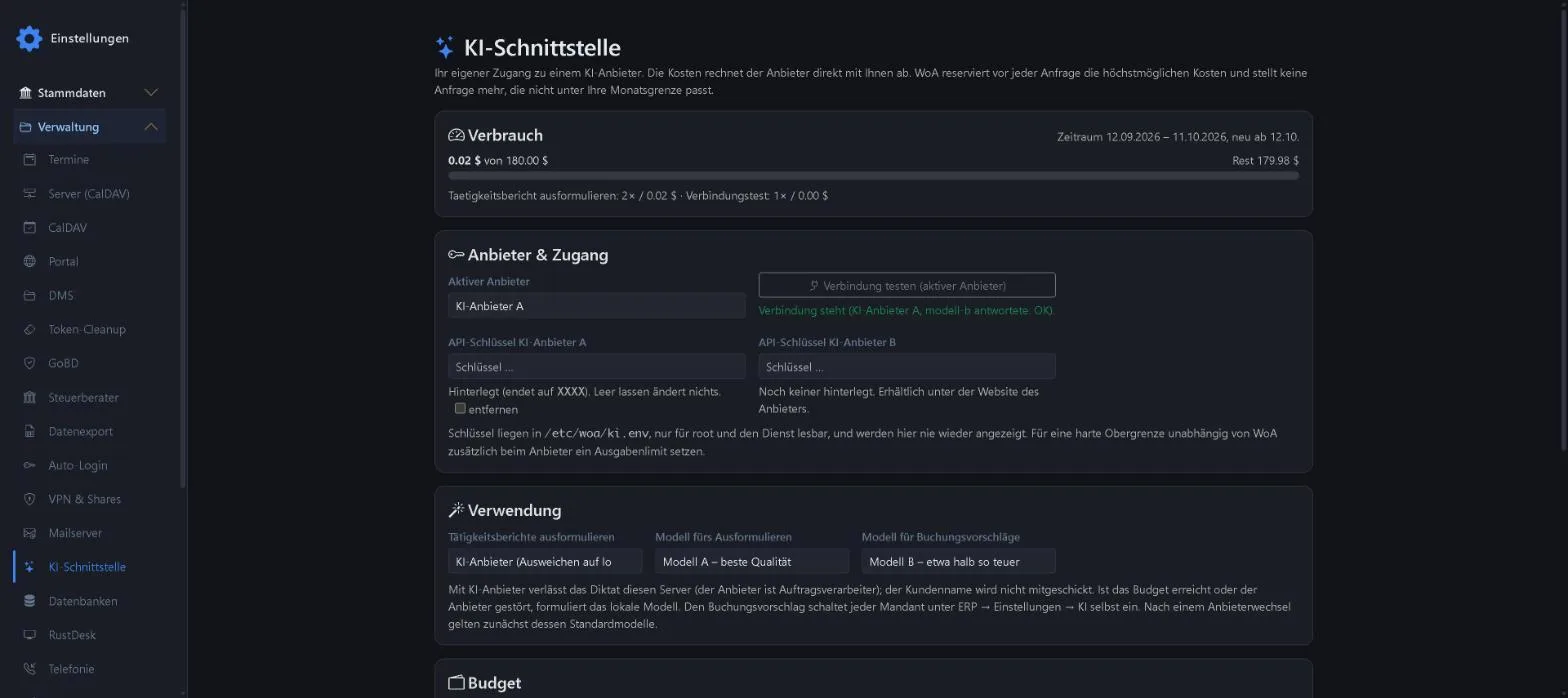
In the Anbieter & Zugang box:
| Field | What to do |
|---|---|
| Aktiver Anbieter (active provider) | Choose the provider whose key you are about to enter. “kein Schlüssel” (no key) after a provider means nothing is stored for it yet. |
| API-Schlüssel (one per provider) | Paste the copied key. After saving, the WorkOrderAgent only shows the last four characters (“Hinterlegt, endet auf …”). Leaving the field empty keeps the stored key. |
| entfernen (remove) | Tick and save to delete a key, for example after creating a new one at the provider. |
| Verbindung testen (test connection) | Sends a tiny test request to the active provider. Green “Verbindung steht”: all good. Red message: wrong key, no credit or provider outage. |
Tip: Save first, then test the connection. The test costs practically nothing and shows up in the usage as “Verbindungstest”.
In the Verwendung box you decide what the provider is used for and with which model:
| Field | Options and recommendation |
|---|---|
| Tätigkeitsberichte ausformulieren (write up activity reports) | “KI-Anbieter (Ausweichen auf lokal)” uses the provider and falls back to the local model on outages or a full budget. “Nur lokales Modell” turns the provider off for reports. |
| Modell fürs Ausformulieren (model for write-ups) | Each provider offers several models: the best, one about half the price, and a very cheap one. The middle one is usually enough for reports. |
| Modell für Buchungsvorschläge (model for booking suggestions) | As above, for account suggestions on incoming invoices. The cheapest one is often enough here. |
Click Speichern (save) at the bottom of the page. After switching providers, the WorkOrderAgent first selects that provider’s default models; check the selection briefly afterwards.
Setting the budget
Menu Einstellungen Verwaltung KI-Schnittstelle Budget
The budget sets the maximum the WorkOrderAgent may spend at the provider per month. It protects you from unpleasant surprises.
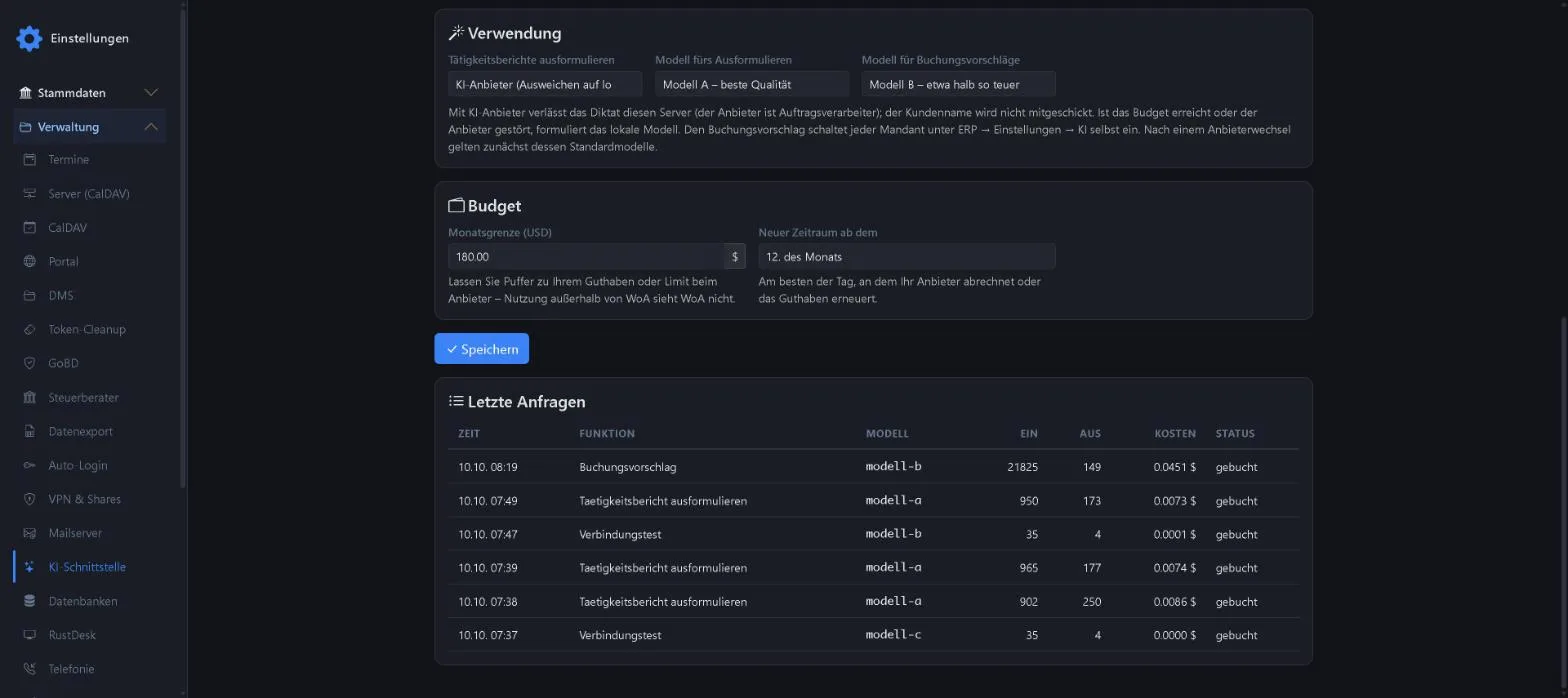
| Field | Meaning |
|---|---|
| Monatsgrenze (USD) (monthly limit) | Maximum per billing period in US dollars, because providers bill in dollars. |
| Neuer Zeitraum ab dem (new period from) | Day of the month on which the counter starts again from zero. Ideally the day your provider bills or renews your credit. |
How the limit works: before every request the WorkOrderAgent works out the most it could cost and reserves that amount. If it no longer fits under the monthly limit, the request is not sent to the provider. Activity reports are then written by the local model, and account suggestions come only from your booking history. After the answer, the actual, usually smaller, amount is booked.
- Rule of thumb: an activity report costs just under one cent with the best model, about half that with the middle one.
- Letting the AI assign a receipt costs more because the whole image is sent: about 4.5 cents with the middle model in the example.
- Example: 300 reports and 100 receipts a month cost around $7 in total, so a $15 limit leaves plenty of room.
Caution: The WorkOrderAgent only sees its own requests. If you use the same key elsewhere, that is not counted here. So also set a spending limit at the provider and keep a buffer to your credit.
Day to day: writing up activity reports
Menu Open a Vorgang Tätigkeiten Tätigkeit hinzufügen
Your staff only notice that it is faster. The steps are the same as without a provider:
- In the Vorgang (job), open the Tätigkeiten (activities) tab.
- Under Gerät/Standort (device/location) enter what it was about, and under Beschreibung (description) what was done, in keywords. Typos and lower case do not matter.
- Click KI-Ausformulieren (AI write-up). “Wird ausformuliert …” appears next to the button.
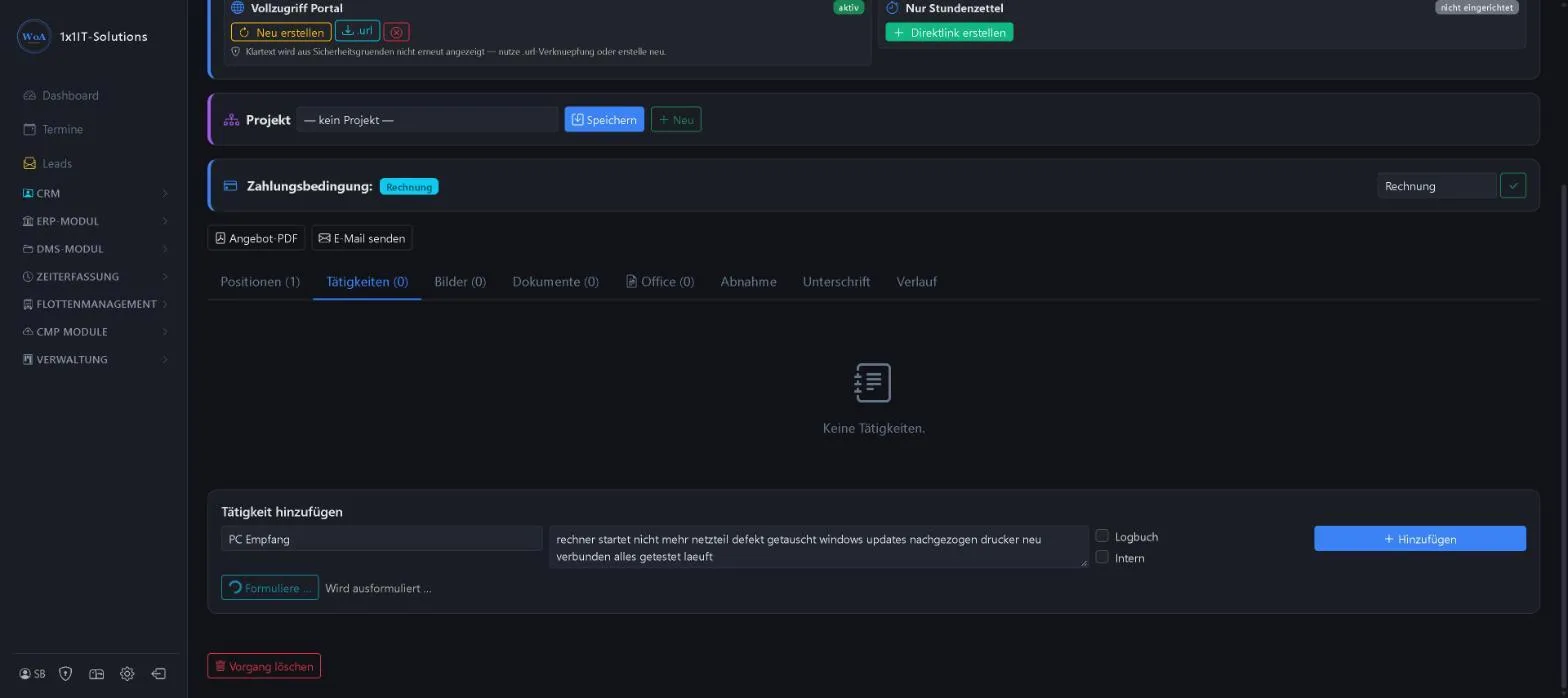
A few seconds later a structured report is in the field: cause, work carried out, fix, function test and result.
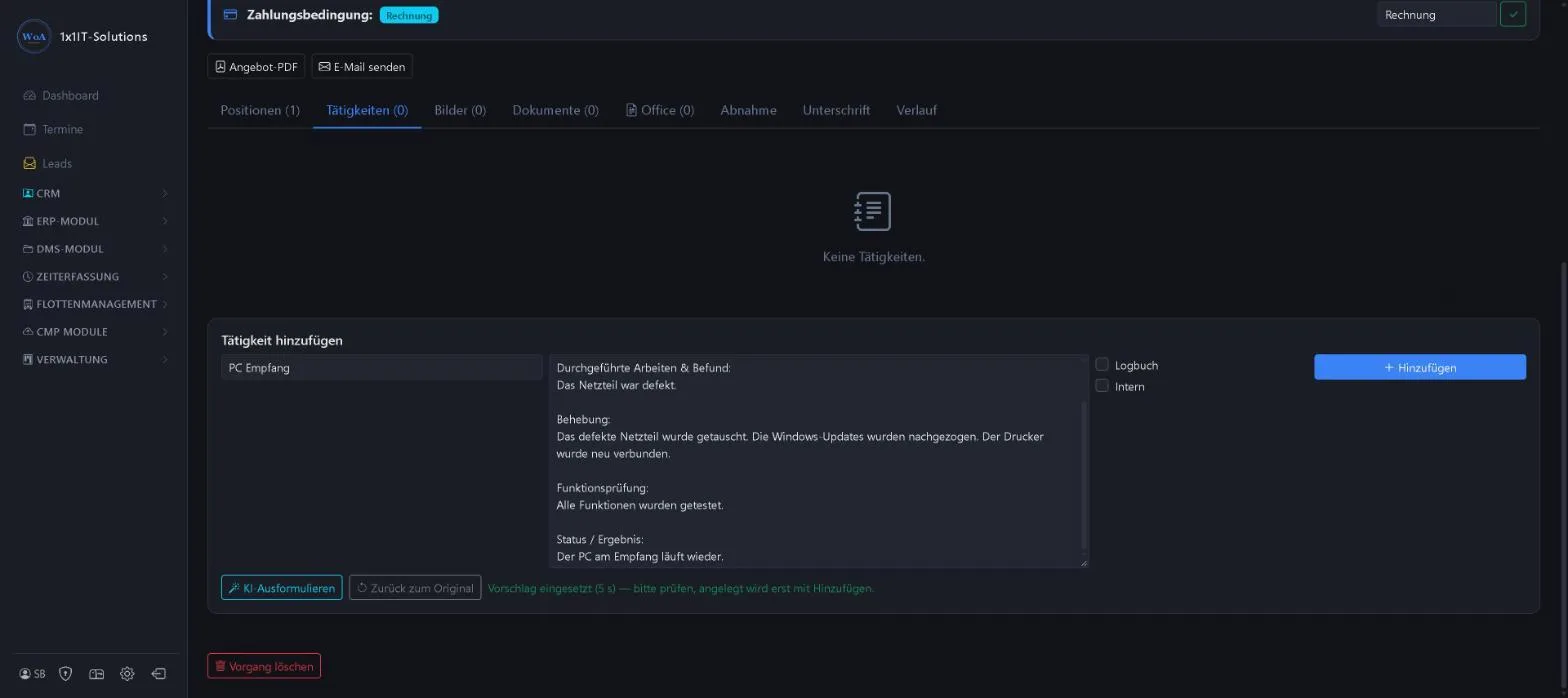
- The text is only a suggestion. Please read it and change it if needed.
- “Zurück zum Original” brings your keywords back.
- Nothing is saved until you click Hinzufügen (add).
What happens: the device and keywords are sent to the provider, the customer name is not. The request appears with its cost under “Letzte Anfragen”. Without a provider, on outages or with a full budget, the local model writes the report; this takes up to two minutes.
Tip: The full process from quote to invoice is shown in the example Quote to invoice.
Day to day: account suggestions for incoming invoices
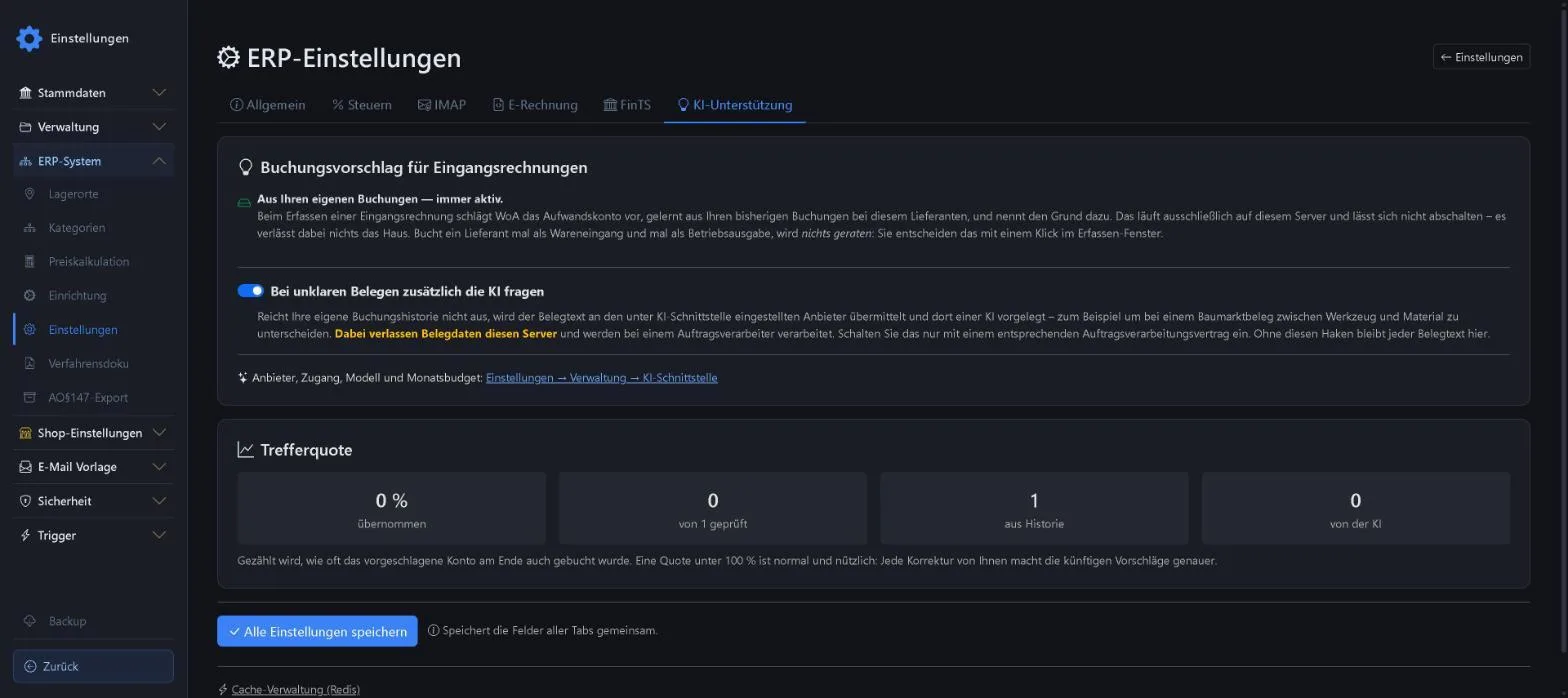
Menu ERP-System Einstellungen KI-Unterstützung
When you enter an incoming invoice, the WorkOrderAgent suggests the matching expense account. It learns from your previous bookings for the same supplier. This always runs, and only on your server.
| Setting | Meaning |
|---|---|
| From your own bookings | Always on. If a supplier is ambiguous (sometimes goods, sometimes operating expenses), the WorkOrderAgent does not guess but lets you choose in the entry window. |
| Bei unklaren Belegen zusätzlich die KI fragen (also ask the AI for unclear receipts) | If your booking history is not enough, the receipt text is sent to the configured provider, for example to tell tools from materials on a DIY store receipt. |
Caution: With this switch, receipt data leaves your server. Only turn it on if you have a data processing agreement with the provider. Without the tick, every receipt text stays in-house.
The switch applies per tenant and is saved with “Alle Einstellungen speichern”.
Example: what the account suggestion looks like
Menu ERP-Modul Finanzen Kreditoren + Eingangsrechnung
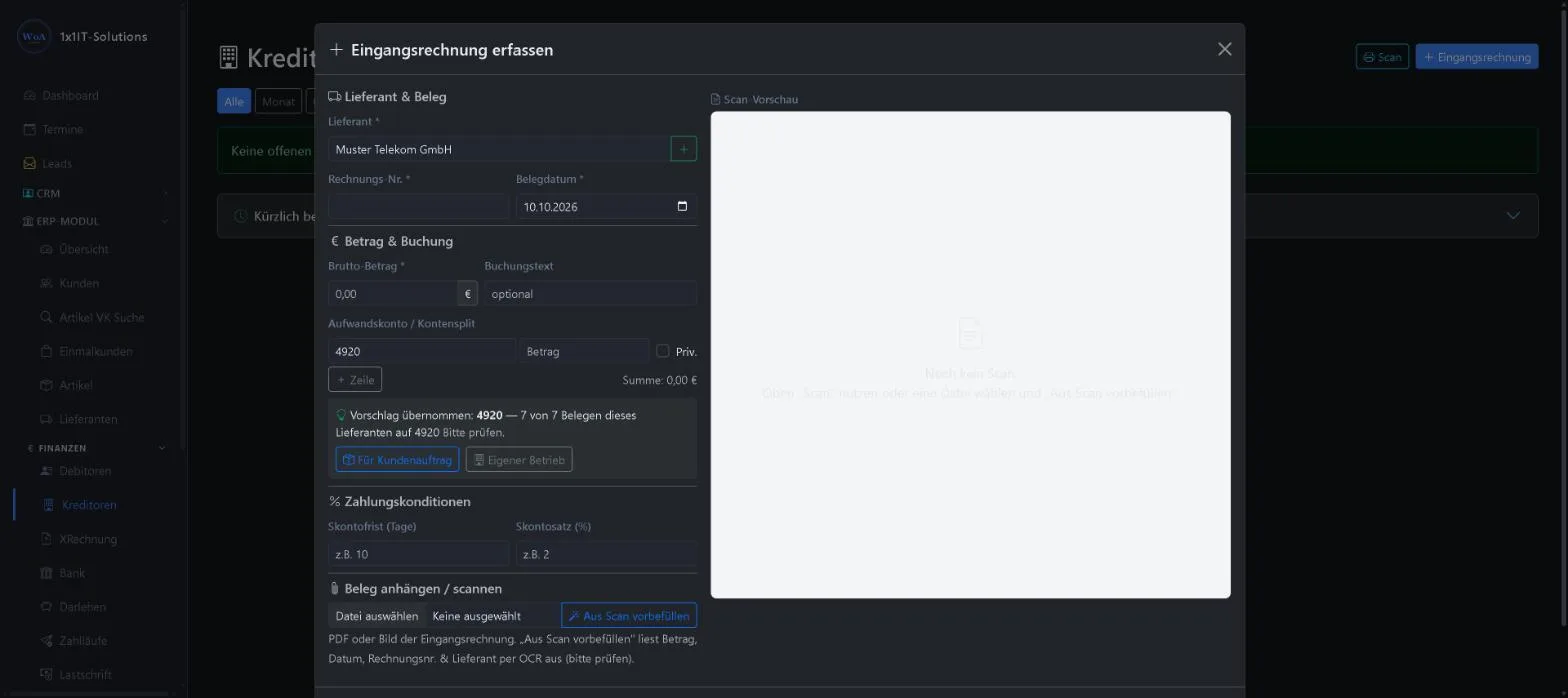
You will not find the suggestion in the settings but in the “Eingangsrechnung erfassen” (enter incoming invoice) window. It appears directly below “Aufwandskonto / Kontensplit” (expense account) as soon as a supplier is selected.
- Open ERP-Modul → Finanzen → Kreditoren (accounts payable).
- Click “+ Eingangsrechnung” at the top right.
- Choose the supplier under “Lieferant”.
- The suggested account now appears under “Aufwandskonto”, with a grey box below giving the reason.
Case 1: the supplier has always been booked the same way. Here 7 of 7 receipts were on account 4920, so the WorkOrderAgent enters 4920 and adds “Vorschlag übernommen … Bitte prüfen” (suggestion applied, please check).
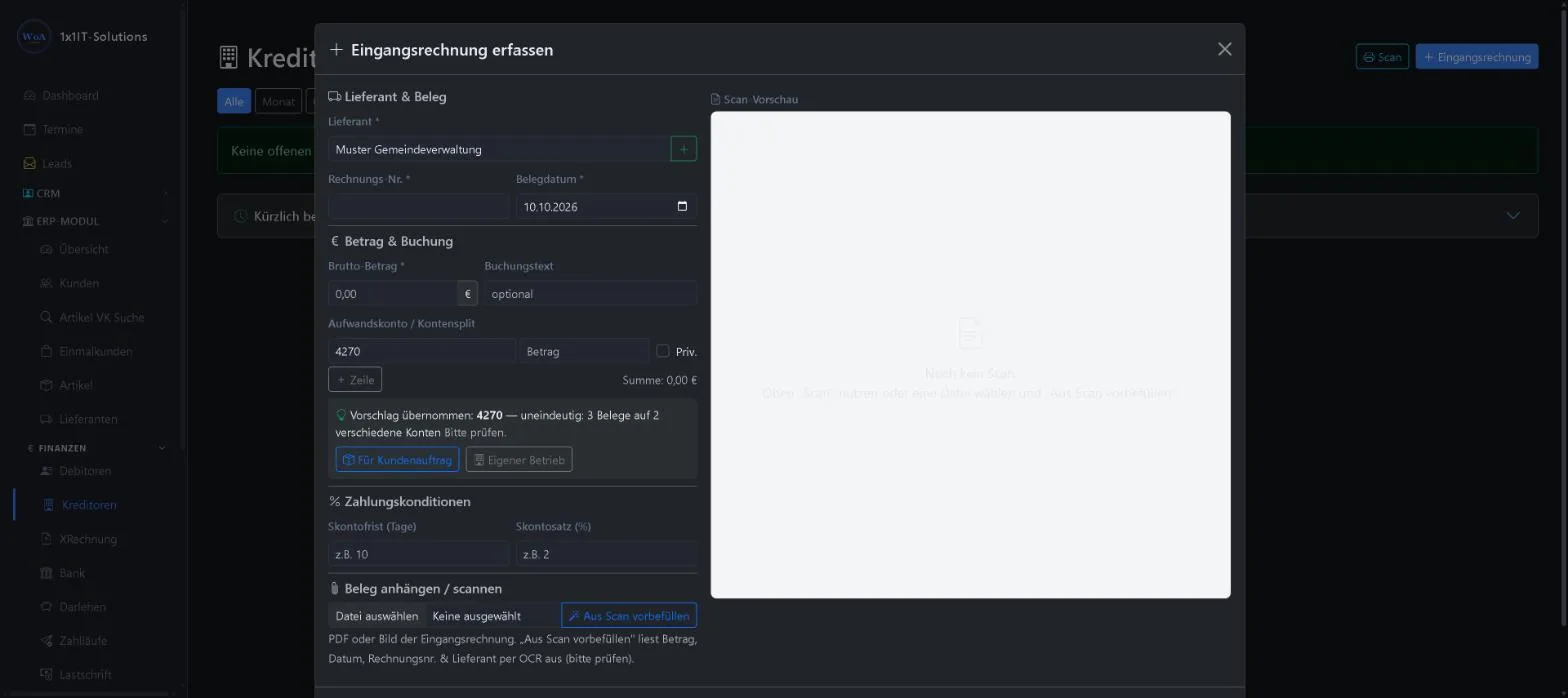
Case 2: the supplier has been booked to different accounts. The WorkOrderAgent enters the most frequent account and marks the suggestion as “uneindeutig” (ambiguous). Check it carefully.
Case 3: a new supplier without previous bookings. It says “Keine passende Vorbuchung gefunden – Konto bitte selbst wählen” (no matching booking, please choose the account). In the example a DIY store receipt was read in with “Aus Scan vorbefüllen” (prefill from scan): amount, date and invoice number were filled in, you choose the account. From this supplier’s next invoice on, the WorkOrderAgent suggests your account.
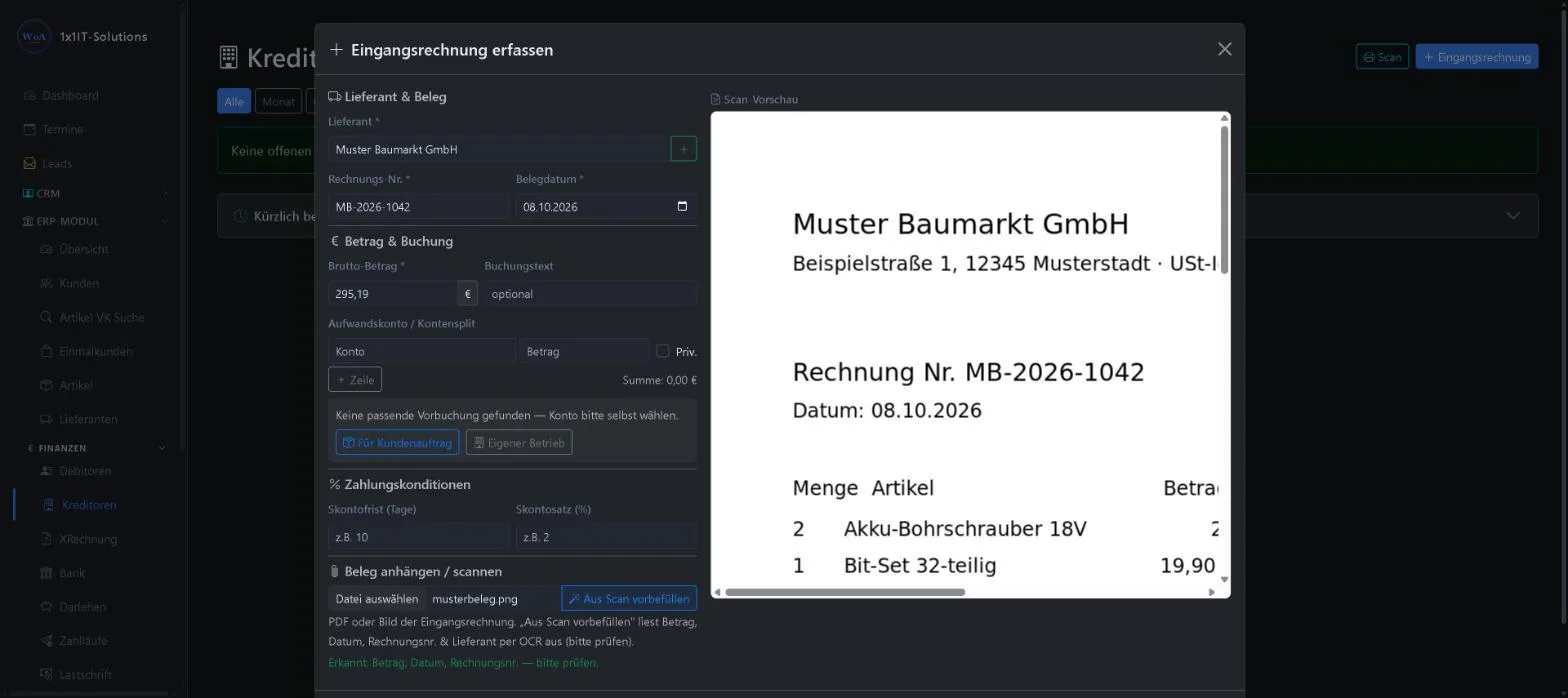
- The buttons “Für Kundenauftrag” (for a customer order) and “Eigener Betrieb” (own business) in the grey box decide whether the goods are for a customer order (goods received) or for your own business (operating expense).
- You can always overwrite a suggested account. Nothing is booked until you click “Erfassen”.
- Every correction feeds into future suggestions and the hit rate.
Tip: You ask the AI itself on a bank transaction with a receipt, see the next section. Whether it was asked is shown in the hit rate (“von der KI”) and under KI-Schnittstelle → Letzte Anfragen with the function “Buchungsvorschlag” (booking suggestion).
Example: scanning a receipt and letting the AI choose the account
Menu ERP-Modul Finanzen Bank
You need the AI most for card payments at a DIY store or petrol station: the bank statement only shows the retailer, but the right account depends on what was bought. Here the AI reads the receipt and suggests the account.
- Open ERP-Modul → Finanzen → Bank and find the transaction, for example the card payment at the DIY store.
- Attach the receipt in the “Beleg” column: upload a file (PDF, PNG or JPG) with the paper clip, or use the printer icon “Beleg jetzt scannen” (scan receipt now). Then put the receipt in your scanner; the WorkOrderAgent waits until the scan arrives in your inbox folder and attaches it. If there is no receipt, the yellow icon creates a self-made receipt with a reason.
- Click the chain icon in the “Aktion” column. The “Transaktion zuordnen” (assign transaction) window opens and shows the receipt under “Bereits hochgeladene Belege”.
- Click “KI fragen: Konto aus Beleg vorschlagen” (ask the AI to suggest an account). Next to it you see the maximum cost per click and the remaining budget.
- A few seconds later the suggestion appears. Choose one of the buttons, check account and tax rate, then click “Zuordnen & sofort buchen” (assign and book).
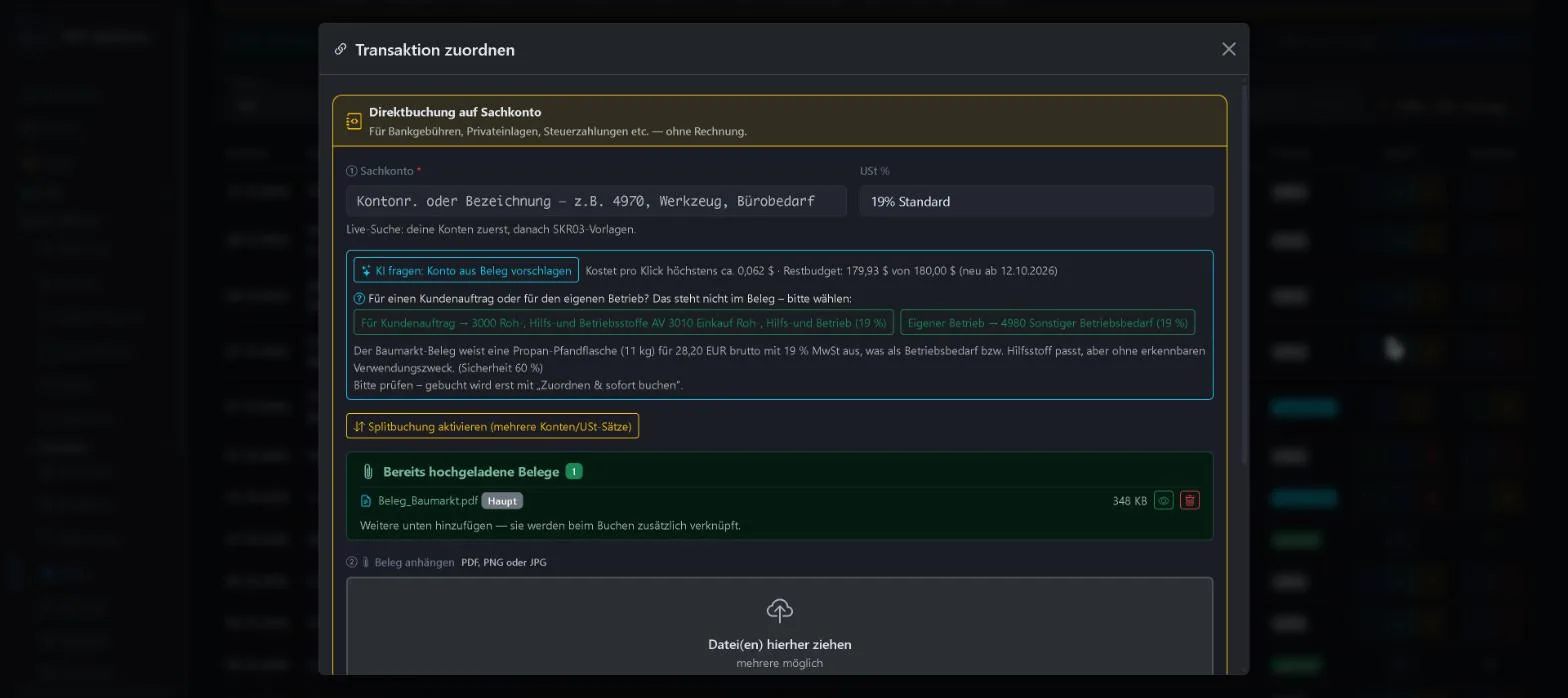
How to read the suggestion in the example:
- The AI recognised the item (a propane gas bottle with deposit for €28.20 incl. 19 % VAT) and explains its choice in one sentence.
- Whether the purchase was for a customer order or for your own business is not on the receipt, so it offers two buttons: “Für Kundenauftrag → 3000 raw materials and supplies” and “Eigener Betrieb → 4980 other operating supplies”.
- “Sicherheit 60 %” (confidence 60 %) means the AI is not sure. The lower the value, the more carefully you should check.
- Nothing is booked until you click “Zuordnen & sofort buchen”. Until then you can change everything or simply close the window.
Further down the window you can attach more receipts or scan directly:
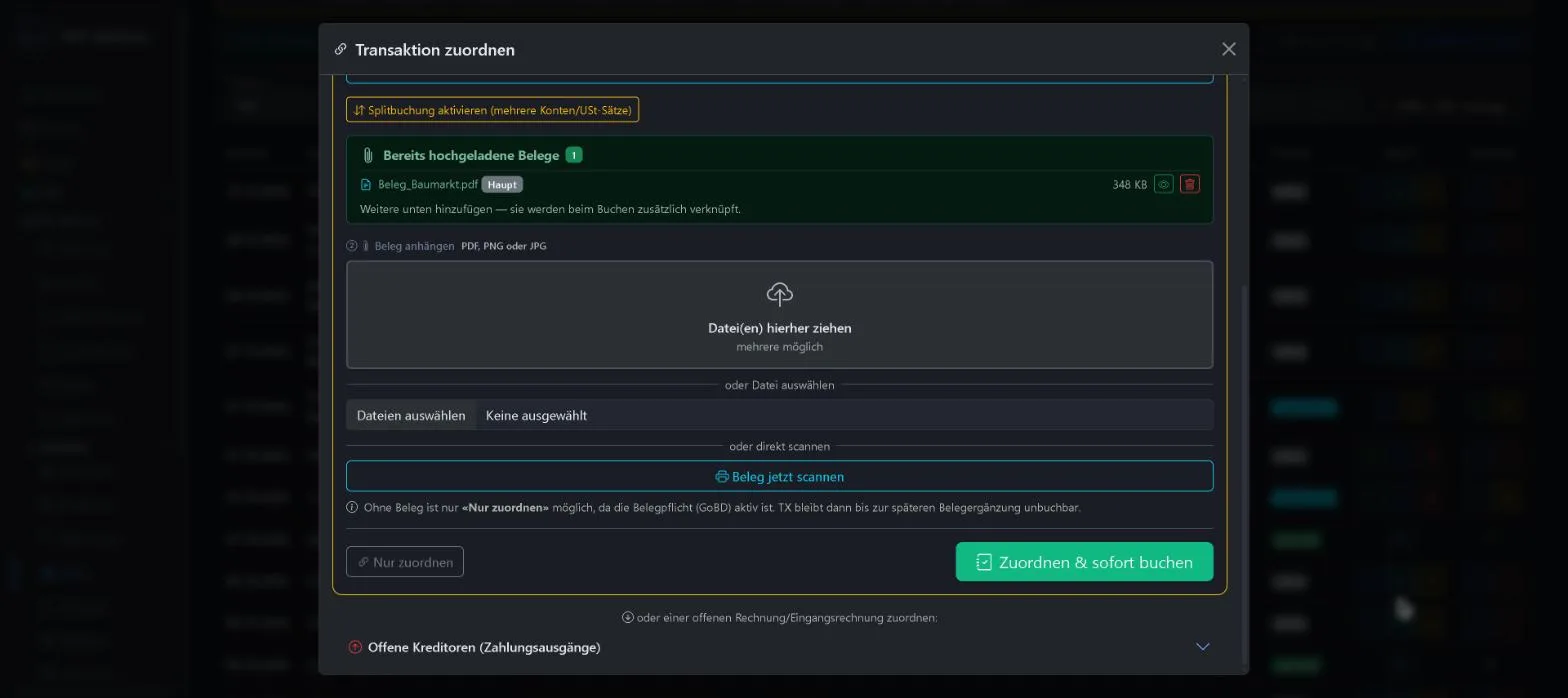
| Element | Meaning |
|---|---|
| Datei(en) hierher ziehen / Dateien auswählen | Upload more receipts for this transaction, several at once if needed. |
| Beleg jetzt scannen (scan receipt now) | Waits for the next scan in your inbox folder and attaches it to this transaction. Just put the receipt in the scanner and scan. |
| Nur zuordnen (assign only) | Possible without a receipt. The transaction then stays unbookable until the receipt is added (receipt requirement under GoBD). |
| Zuordnen & sofort buchen (assign and book) | Books to the chosen account and links all receipts. |
What happens: the receipt is sent to the AI provider as an image, so such a request is larger than an activity report. In the example it was around 22,000 tokens for about 4.5 cents. The request then appears under “Letzte Anfragen” as “Buchungsvorschlag”.
Caution: Receipts often contain names, addresses or card numbers. Only use the AI for receipts if you have a data processing agreement with the provider.
Viewing and evaluating usage
Menu Einstellungen Verwaltung KI-Schnittstelle
The Verbrauch (usage) box is at the very top of the KI-Schnittstelle page (see first screenshot):
- Period: from which day to which day usage is counted and when counting restarts.
- Bar: amount used so far against your monthly limit, the remainder on the right.
- Below it the breakdown by function, for example “Tätigkeitsbericht ausformulieren: 2× / 0.02 $”.
At the bottom, “Letzte Anfragen” lists the individual requests (second screenshot):
| Column | Meaning |
|---|---|
| Zeit (time) | When the request was made. |
| Funktion (function) | What for: activity report, booking suggestion or connection test. |
| Modell (model) | Which model answered. |
| Ein / Aus (in / out) | Amount of text sent and received, measured in tokens. A token is a piece of a word. Providers bill by token, and answer text costs more than text sent. |
| Kosten (cost) | Actual cost of this request in US dollars, to four decimal places. |
| Status | “gebucht” (booked): billed and counted in the usage. |
The WorkOrderAgent calculates the amounts itself from the tokens and the model’s prices. They should be very close to the provider’s bill. Small differences from rounding or exchange rates are normal; the provider’s invoice is what counts.
For account suggestions, the KI-Unterstützung tab in the ERP shows a hit rate (third screenshot): how many suggestions were checked, how many came from your history and how many from the AI, and how often the suggested account was actually booked. A rate below 100 % is normal. Every correction you make improves future suggestions.
Tip: If usage rises unexpectedly, “Letzte Anfragen” shows at once which function and model are behind it. Choosing a cheaper model under Verwendung usually cuts costs by half or more.
Frequently asked questions
| Question | Answer |
|---|---|
| The connection test reports an error. | Copy and paste the key again, check your credit at the provider, then test again. If that does not help, the provider often has an outage; the local model keeps working in the meantime. |
| Reports suddenly take long again. | Usually the budget is reached or the provider is down, so the local model is writing. The Verbrauch box shows whether the limit has been reached. |
| Can I work without a provider at all? | Yes. Choose “Nur lokales Modell” under Verwendung or remove the key. All texts then stay on your server. |
| Who can see my key? | Nobody. It is stored securely on the server and never shown again after saving, apart from the last four characters. |
Keywords AI provider AI interface API key budget usage write-up booking suggestion
Rather have it set up for you?
We set up the AI provider for you, choose a suitable model and set a sensible budget.
0173 644 22 17